
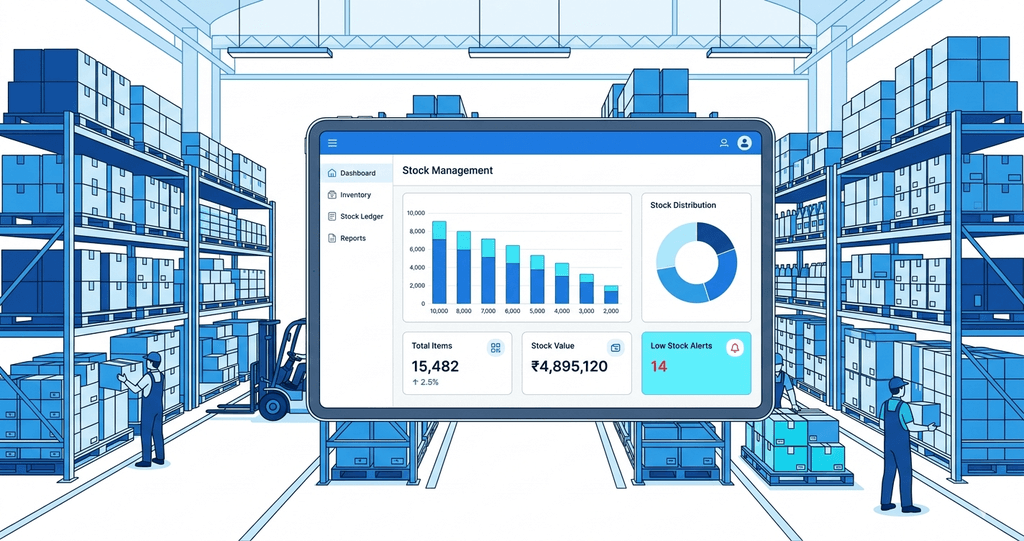
Why Inventory Loss Happens in the First Place
Before we talk about solutions, let us understand the real causes of inventory shrinkage in Indian SMBs:
1. Manual stock counting errors. When your team manually counts hundreds of SKUs every week, mistakes are inevitable. One wrong entry in an Excel sheet can throw off your entire stock report.
2. No real-time visibility. Most businesses only discover stock discrepancies during monthly audits by which point the damage is already done. Without real-time tracking, you are always reacting, never preventing.
3. Untracked internal consumption. Raw materials used in production, samples given to clients, items damaged in storage if these are not recorded immediately, your stock numbers will never be accurate.
4. Supplier and vendor discrepancies. You order 500 units. Only 480 arrive. Without a proper goods receipt process, you pay for 500 and only have 480 and no one catches it.
5. Theft and pilferage. Hard to talk about, but real. Without item level tracking and access controls, internal theft goes unnoticed for months.
ERPNext addresses every single one of these problems automatically.
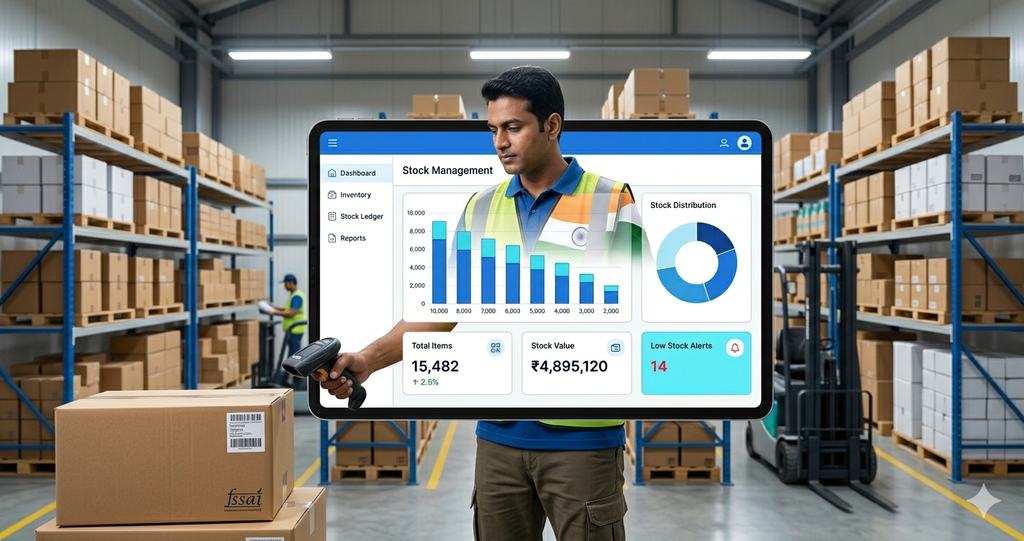
Step 1: Set Up Your Item Master Correctly
The foundation of inventory control in ERPNext is a clean, detailed Item Master. Every product you stock must be entered with:
- A unique Item Code (e.g., RM-STEEL-001 for raw materials)
- Item Group (Raw Material, Finished Goods, Consumables)
- Unit of Measure (kg, pcs, litre, box)
- Valuation Method (FIFO or Moving Average choose one and stick with it)
- Minimum Order Quantity and Reorder Level
A properly configured Item Master means ERPNext always knows what you have, where it is, and what it is worth. Without this foundation, no automation will work correctly.
Pro tip: If you have 500+ SKUs, do not enter them manually. ERPNext supports bulk import via CSV Ecowin can help you migrate your existing Excel data in a single day.
Step 2: Enable Warehouse Level Stock Tracking
Most businesses treat their storage as one big room. ERPNext allows you to break it down into multiple warehouses and storage locations even virtual ones.
Set up warehouses like:
- Main Warehouse (raw materials)
- Production Floor (work in progress)
- Finished Goods Store
- Quality Check Zone
- Damaged Goods Area
When every movement of stock is recorded between these locations inward, outward, internal transfer you always know exactly where every item is. Discrepancies become immediately visible instead of discovered weeks later.
Step 3: Automate Goods Receipt Against Purchase Orders
One of the biggest sources of inventory loss is the gap between what you order and what you actually receive.
In ERPNext, here is how to close that gap:
- Create a Purchase Order for every supplier transaction no verbal orders.
- When goods arrive, your warehouse team creates a Purchase Receipt directly against the Purchase Order.
- ERPNext automatically flags any quantity discrepancy if you ordered 500 kg and only 480 kg arrived, the system alerts the purchase manager immediately.
- Payment is only released after the Purchase Receipt is verified so you never pay for goods you did not receive.
This single process change can recover 5–10% of inventory costs for businesses that previously operated on verbal or informal purchase processes.
Step 4: Use Stock Reconciliation for Regular Audits
Instead of monthly audits that reveal problems too late, ERPNext allows you to run mini stock reconciliations at any frequency daily, weekly, or by warehouse zone.
The process is simple:
- Go to Stock > Stock Reconciliation in ERPNext.
- Select the warehouse and item group you want to audit.
- Your team physically counts the items and enters the actual quantity.
- ERPNext automatically calculates the difference between system stock and physical stock.
- Any variance above your set threshold triggers an automatic alert to the warehouse manager.
When you run small, frequent audits instead of one big annual audit, discrepancies are caught within days not months. The financial damage is minimal, and the root cause is much easier to identify.
Step 5: Set Up Reorder Alerts and Stock Level Automation
Inventory loss does not only mean stock going missing. It also means stockouts losing sales because you ran out of a product you should have reordered two weeks ago.
ERPNext handles this automatically:
- Set a Reorder Level for each item the minimum quantity at which a reorder should be triggered.
- Set a Reorder Quantity how much to order when the reorder level is hit.
- Enable Auto Material Request in ERPNext settings.
Now, the moment your stock of any item falls below the reorder level, ERPNext automatically creates a Material Request and notifies your purchase team. No manual monitoring required.
For businesses with seasonal demand, you can also set seasonal reorder rules higher reorder levels during peak months, lower during slow periods.
Step 6: Control Access with User Permissions
Not everyone in your team should be able to adjust stock, cancel purchase receipts, or modify item valuations. ERPNext has a powerful role-based permission system that lets you control exactly who can do what.
Recommended permission structure:
| Role What They Can Do | |
| Warehouse Staff | Create stock entries, view item list |
| Purchase Manager | Create and approve purchase orders |
| Accounts Manager | View valuations, approve payments |
| Store Manager | Run stock reconciliation, view all reports |
| Admin / Owner | Full access |
With this structure in place, unauthorized stock adjustments become impossible and every action is logged with a timestamp and user name for full audit trail.
Step 7: Use ERPNext Reports to Spot Loss Patterns
Once your inventory is running on ERPNext, the data starts working for you. Use these built-in reports regularly:
Stock Ledger Report: Shows every single movement of every item, with date, quantity, and value. If stock is disappearing, this report will tell you exactly when and where.
Itemwise Stock Reorder Report: Shows items that are below reorder level right now.
Stock Ageing Report: Shows how long items have been sitting in your warehouse. Items older than 90 days are a red flag for dead stock or expiry risk.
Purchase Order vs Receipt Report: Compares what you ordered with what you actually received from each supplier. Chronic under delivery by a supplier shows up immediately.
Review these four reports every week. They will tell you more about your business than any monthly meeting.
Real Results: What Businesses Are Seeing After ERPNext Implementation
Businesses that implement ERPNext inventory automation with Ecowin AI typically see:
- 35–40% reduction in inventory discrepancies within 90 days
- 20–25% reduction in dead stock and expired goods
- 15% improvement in purchase accuracy (ordering the right quantity at the right time)
- Full audit trail: Every stock movement tracked, timestamped, and user tagged
These are not technology miracles. They are the natural result of replacing guesswork with a system.
Common Mistakes Businesses Make During ERPNext Inventory Setup
Rushing the Item Master setup. If your item data is messy at the start, everything downstream will be wrong. Take two to three days to clean your item list before going live.
Not training warehouse staff. ERPNext is only as good as the data your team enters. Every person who touches inventory must understand the basic entry process.
Skipping the opening stock entry. Before going live, you must enter your current stock levels in ERPNext. Skipping this step means your reports will never be accurate.
Using multiple valuation methods. Pick FIFO or Moving Average do not switch midway. Changing valuation methods after you go live creates accounting headaches.
Ready to Stop Losing Inventory?
Setting up ERPNext inventory management the right way takes planning, clean data, and the right implementation partner. At Ecowin , we have helped manufacturing companies, traders, and retailers across Jaipur and Rajasthan take full control of their inventory with zero data loss during migration.
We handle ERPNext setup, item master migration, warehouse configuration, staff training, and ongoing support.
Book a free 30-minute consultation and we will show you exactly how much inventory loss your business can recover.